

Use GPT Image 2.0 to merge two images into one
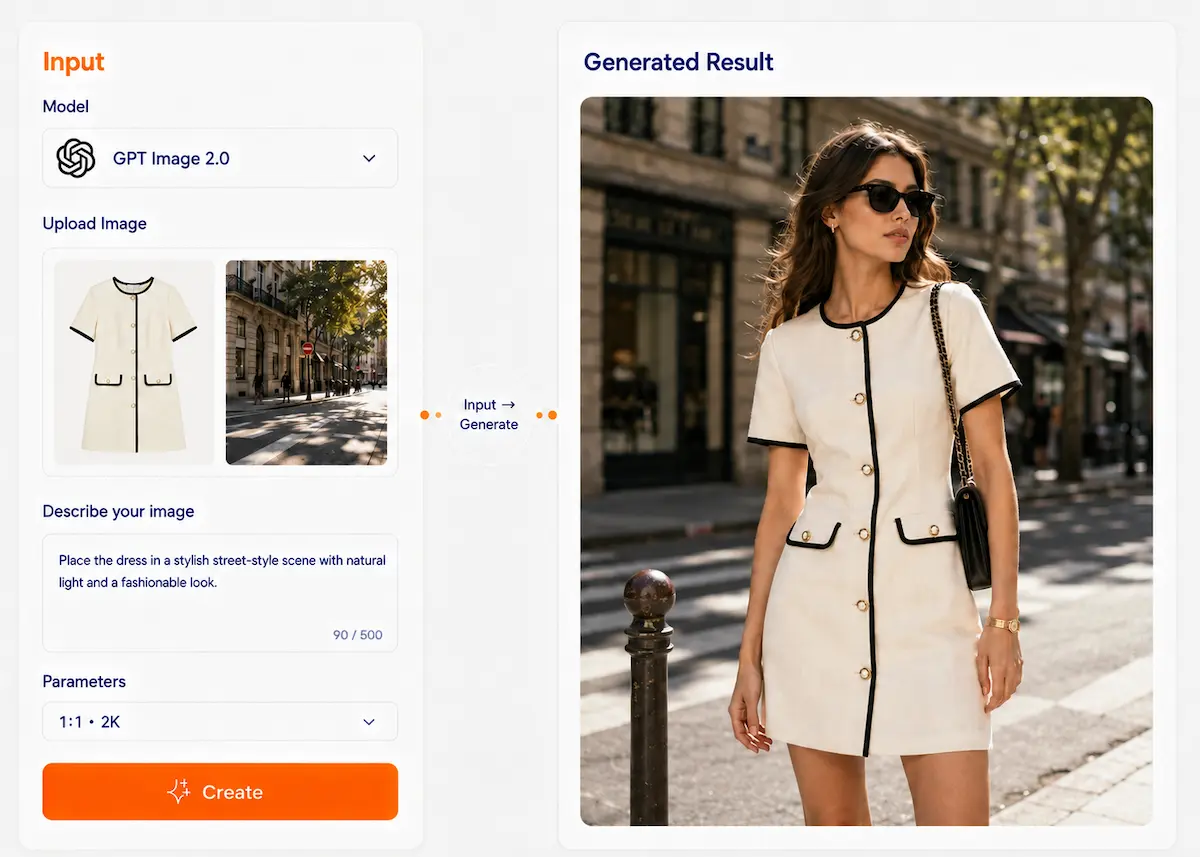
Upload two images and use GPT Image 2.0 to create a clear and natural composite image. Combine products, people, backgrounds, clothing, and reference elements.
GPT Image 2.0
Create from multiple image references
Use two or more reference images to guide one result. GPT Image 2.0 can understand text and image inputs together, making it useful for combining subjects, placing a person into a new scene, composing products into a setup, applying a visual style from another image, or editing part of an image with clearer visual guidance.
What can you do with GPT Image 2.0?
Six practical multi-reference capabilities for image generation and editing
Multi-image composition
Combine elements from multiple images into one believable result. You can specify what to take from each reference and how they should appear together in the final image. Example: Put the dog from image 2 next to the woman in image 1.
Subject in a new scene
Use one image as the main subject reference and another as the scene reference. GPT Image 2.0 can generate a new image that places the subject into a different background while aiming to match lighting, scale, and composition more naturally. Example: Put a person from one photo into a café interior from another photo.
Product-in-scene generation
Use product photos, scene photos, or additional visual references to generate product marketing images. This is useful for showing a product in context instead of only on a plain background. Example: Place a skincare bottle from image 1 into the bathroom scene from image 2.
Style-guided image creation
Use one image for content and another for visual direction. You can ask GPT Image 2.0 to keep the subject from one image while borrowing the style, color mood, or art direction from another. Example: Keep the portrait from image 1, but apply the illustration style from image 2.
Reference-guided local edits
Edit only part of an image while using extra reference images to guide the change. This is helpful when you want to replace or insert something without changing the whole composition. Example: Replace the chair in image 1 using the chair design shown in image 2.
Identity- and detail-aware edits
For portraits or recognizable subjects, GPT Image 2.0 is a strong option when you want the result to stay closer to the input while making controlled changes. It is especially useful for compositing, photorealism, and edits where fewer retries matter. Example: Keep the same person, but change the outfit and place them in a new environment.
Three steps to get started
A simple workflow for multi-reference image creation
Upload your reference images
Choose the images you want to use. For best results, decide what each image is for: main subject, background, style, product, or object reference.
Explain the role of each image
Write a clear prompt that tells the model how the images should work together. A simple structure works well: Image 1 = main subject Image 2 = background or scene Image 3 = style or color reference Goal = what the final image should look like
Generate and refine
Generate the image, review the result, and refine the instruction if needed. You can ask for changes like better composition, a different placement, stronger style transfer, or more realistic blending.
What does it look like?
See how multi-reference prompts can guide the final image
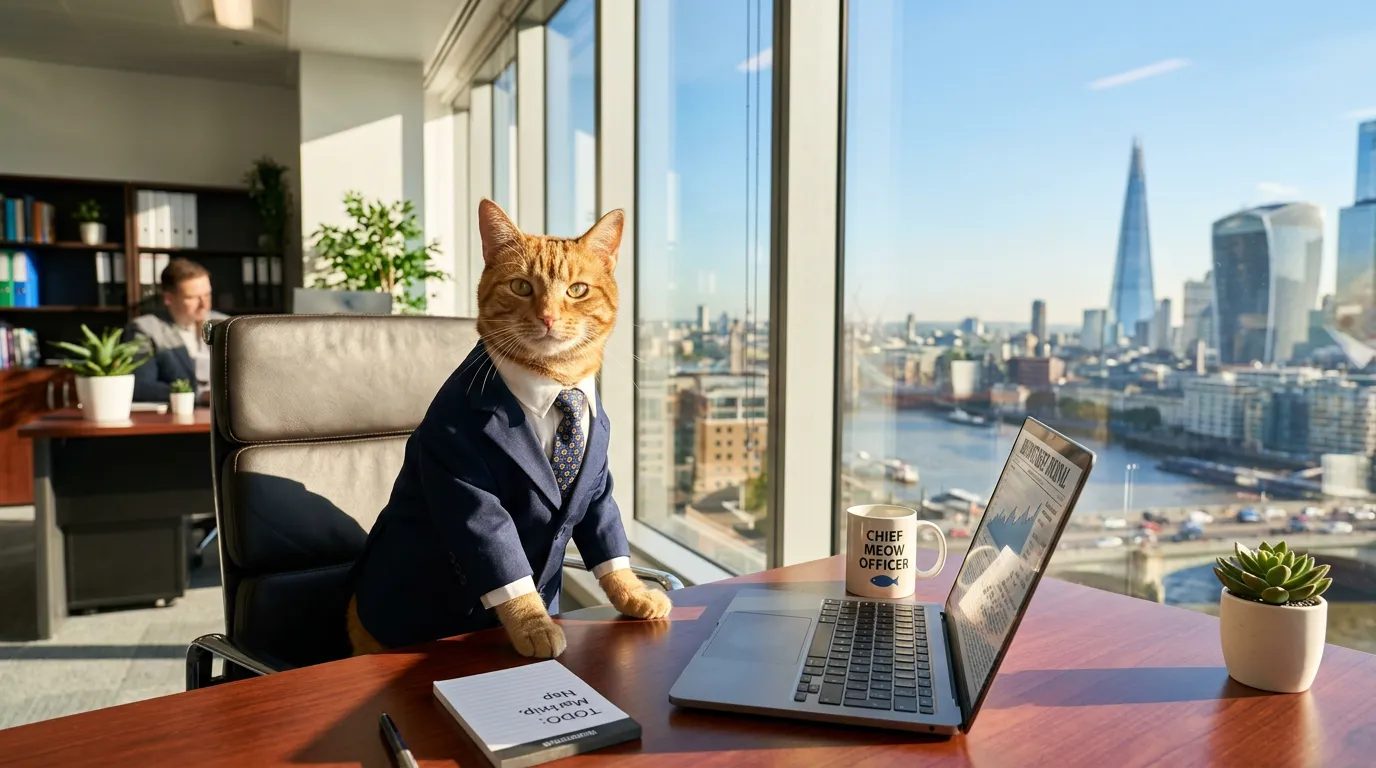
A cat in a suit working in an office, city view through the window, sunlight streaming in
Case descriptionText-to-image: From zero to one No source material needed—describe the scene and AI draws it. Great for quick images when you have no assets.
Can't write prompts? Just copy
These multi-reference templates are easy to reuse and adapt
Person in new background
Image 1: [person photo]. Image 2: [background photo]. Place the person from image 1 into the setting from image 2. Keep the person recognizable. Match the lighting, perspective, scale, and overall mood so the result looks natural.
Use templateProduct in scene
Image 1: [product photo]. Image 2: [scene or environment photo]. Image 3: [optional style reference]. Create a polished product image using the product from image 1 inside the scene from image 2. If image 3 is provided, follow its visual style. Keep the product clear and realistic.
Use templateStyle-guided restyle
Image 1: [main subject image]. Image 2: [style reference image]. Generate a new image that keeps the main subject from image 1 but follows the style, color mood, and art direction of image 2.
Use templateLocal replacement with reference
Image 1: [main image]. Image 2: [replacement object reference]. Edit only the selected area in image 1 and replace it with an object based on image 2. Preserve the rest of the image, including camera angle, lighting, and surrounding details.
Use templateWhy GPT Image 2.0 fits multi-reference work
Its image understanding and editing strengths make multi-image workflows more practical
Text + image understanding
GPT Image 2.0 can work from both text and image inputs. That makes it useful for prompts where the result depends on multiple reference images plus clear written instructions.
Better compositing guidance
It is well suited for compositing workflows where you want to insert a person or object from one image into another. Clear prompts help it preserve the main scene while matching lighting, perspective, scale, and shadows more naturally.
High-fidelity image inputs
GPT Image 2.0 processes image inputs at high fidelity by default. This is especially useful for editing, reference-image workflows, photorealism, and cases where visual details matter.
FAQ
Yes. According to the official image generation guide, you can use one or more images as references to generate a new image. This makes it suitable for multi-reference workflows such as combining products, placing a subject into a new scene, or using one image for content and another for style.
Create your first multi-reference image
Upload multiple images, describe how they should work together, and let GPT Image 2.0 generate one polished result.
Start creating